
Guides
Guides: make iPhone videos small enough to send
Every guide starts with a direct answer, covers what iOS can and can't do on its own, then shows the steps in Compress Video.
-
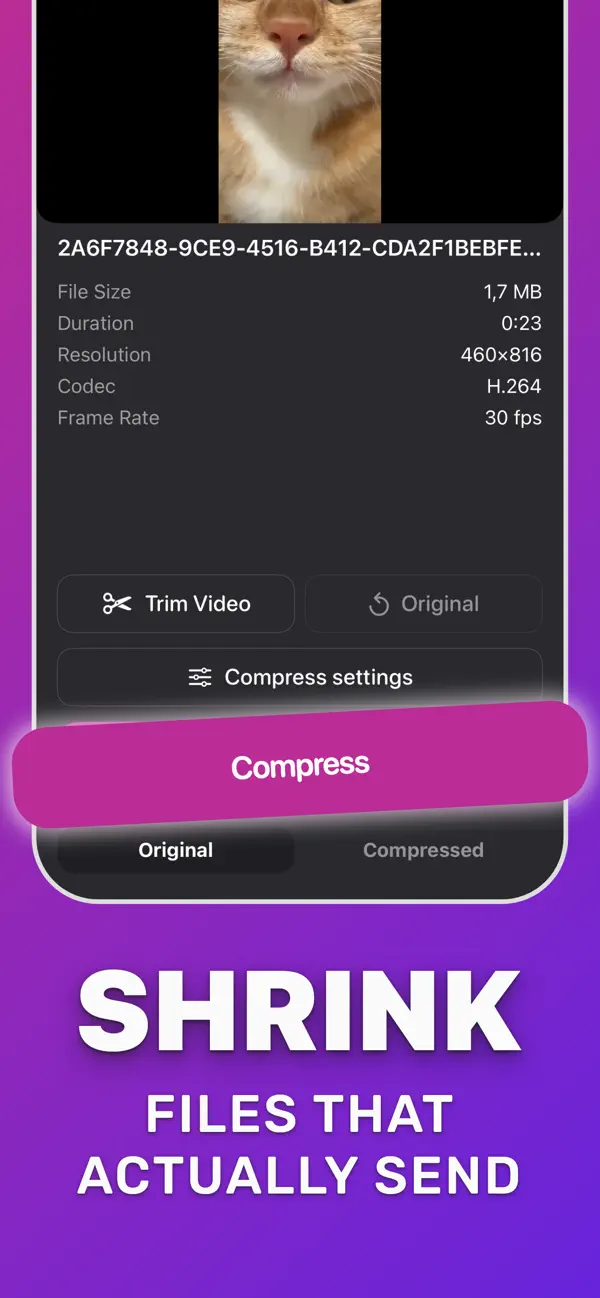 Compress video
Compress a video on iPhone
iOS has no compress button. Here is the fastest way to make any clip smaller, on device.
Read the guide →
Compress video
Compress a video on iPhone
iOS has no compress button. Here is the fastest way to make any clip smaller, on device.
Read the guide →
-
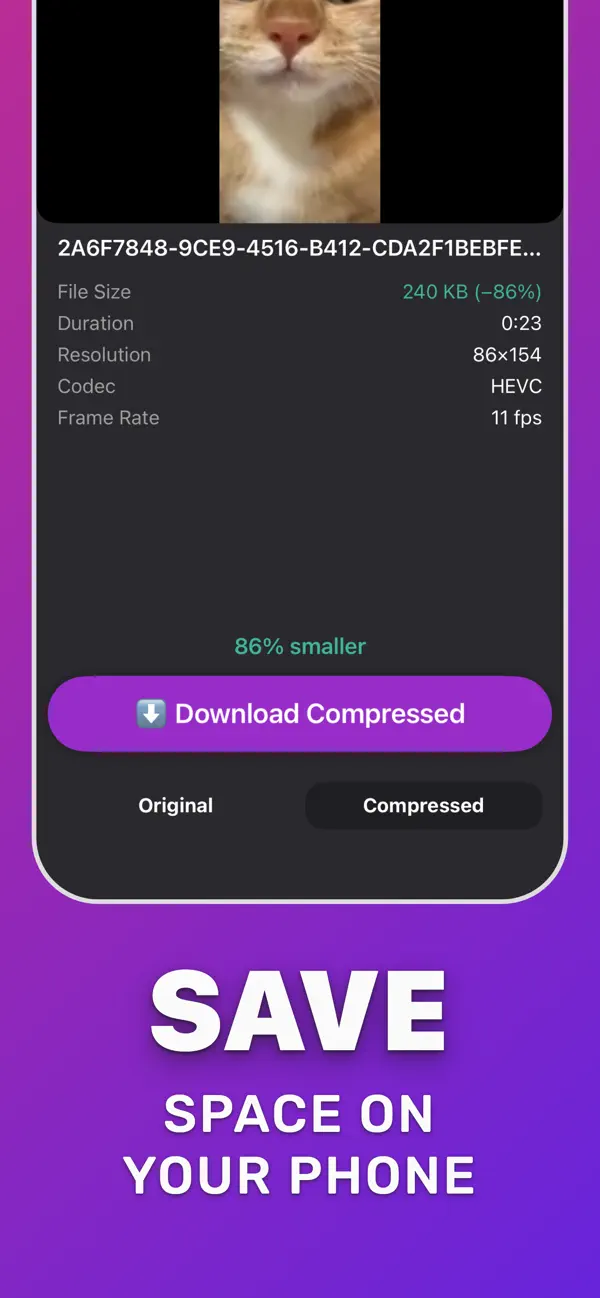 Keep quality
Reduce size without losing quality
Which settings cut size without a visible hit, and which ones you should leave alone.
Read the guide →
Keep quality
Reduce size without losing quality
Which settings cut size without a visible hit, and which ones you should leave alone.
Read the guide →
-
Email
Email a video that's too large
Gmail stops at 25 MB, Outlook at 20 MB. Compress under the limit and attach it.
Read the guide →
-
Too large to send
“Video too large to send”
Why Messages, text and Messenger reject big clips, and how to make them fit.
Read the guide →
-
WhatsApp
Compress a video for WhatsApp
Stop WhatsApp from mangling your video: compress it yourself or send it as a document.
Read the guide →
-
 Discord
Make a video fit Discord
Free Discord uploads stop at 20 MB. Get any clip under it from your iPhone.
Read the guide →
Discord
Make a video fit Discord
Free Discord uploads stop at 20 MB. Get any clip under it from your iPhone.
Read the guide →
-
iPhone to Android
Send a video from iPhone to Android
Why videos get blurry over text, and the clean way to send them.
Read the guide →
-
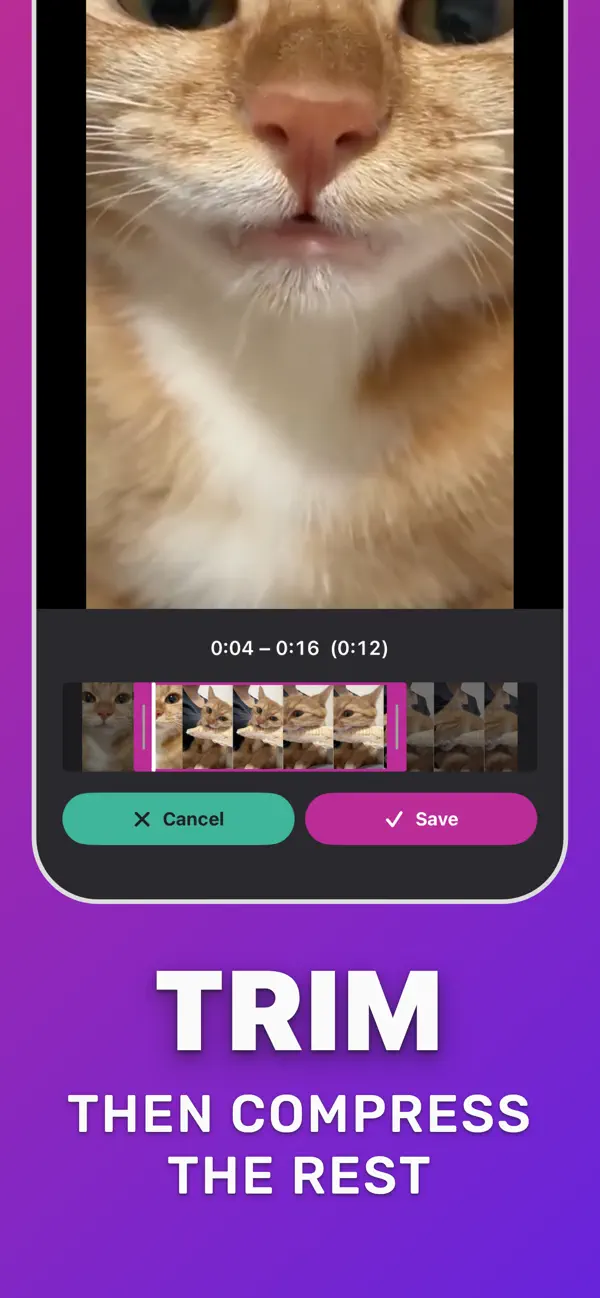
Trim
Trim and compress in one go
Cutting seconds is the cheapest size win. Trim, then compress the rest.
Read the guide →
-
Storage
Free up storage from videos
Keep the memory, lose the gigabytes: shrink 4K, slow-mo and screen recordings.
Read the guide →
-
HEVC
Convert a video to HEVC
H.264 → H.265 is the biggest free size win for older clips and downloads.
Read the guide →
Ready?
Your next video sends on the first try.
Download Compress Video, pick the clip that won't send, and save a smaller copy in seconds.
Free download · iOS 18.6 or later · on-device