Keep quality
How to reduce video size on iPhone without losing quality
Quick answer
Change the codec, not the picture. Re-encoding an H.264 clip to HEVC at the same resolution often cuts the size roughly in half at the same resolution. Then trim unused seconds. Lower resolution or frame rate only if you still need it smaller, and compare Original and Compressed before saving.
Every compression throws away data. The goal is to throw away what matters least and keep what you actually watch.
Here is the order that keeps clips sharp, from free wins to real trade-offs.
Changes that cost the least
- Convert H.264 to HEVC at the same resolution.
- Trim the start and end you don't need.
- Mute audio on clips where sound doesn't matter.
Trade-offs to make only if needed
- 4K → 1080p: invisible on a phone, visible on a TV.
- 60 → 30 fps: fine for talking and screen recordings, less smooth for sports.
- 1080p → 720p: fine in chats, soft when viewed full screen on a laptop.
Check which codec your clip uses
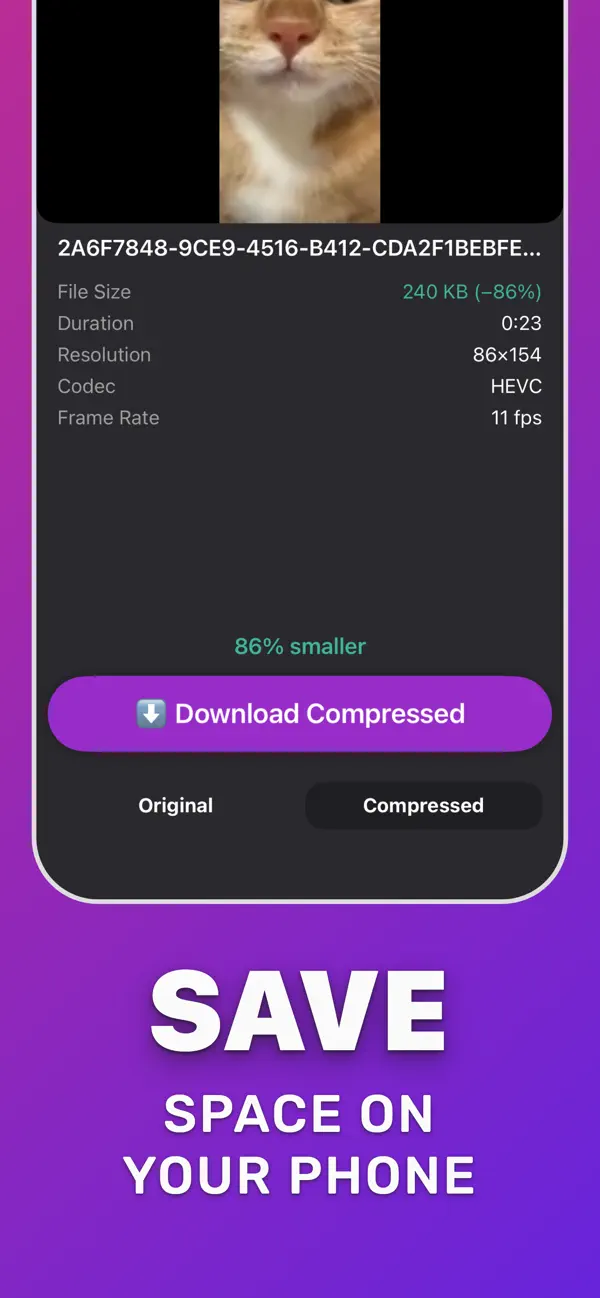
In Compress Video, the file details show the codec before you compress. If it says H.264, you have the most to gain from HEVC alone. Screenshots in the App Store listing show a 460×816 H.264 clip going from 1.7 MB to 240 KB; that example also lowers resolution and frame rate, so expect less if you keep both.
After recording vs before recording
For future videos, Settings → Camera → Formats → High Efficiency records in HEVC, and Record Video lets you choose 1080p instead of 4K. For videos you already have, re-encode them in an app.
Reduce size while keeping quality in Compress Video
Start with the safe changes; only lower more if the file is still too big.
-
1
Open the clip
Pick the video in Compress Video and check its codec, resolution and frame rate.
-
2
Trim
Tap Trim Video and cut the parts you don't need.
-
3
Keep resolution first
In Compress settings leave the resolution slider at 100% and keep the frame rate, set audio to compress, and tap Compress.
-
4
Compare
Flip Original and Compressed. If the size is still too big, lower the frame rate or move the resolution slider down a little and compress again.
-
5
Save
Tap Download Compressed and keep the original until you are happy with the copy.

Do it in Compress Video
Free on the App Store. Pick the clip, tap Compress, save the smaller copy.
Questions people also ask
Does HEVC reduce quality?
HEVC stores comparable quality in fewer bits than H.264. That is why iPhone records in HEVC by default under High Efficiency.
Will the compressed video play on Android or Windows?
Modern Android phones and Windows with HEVC support play it. For very old devices, lower the resolution instead and share through an app that converts on upload.
Compress Video saves a new, smaller copy of your video. The original stays untouched until you delete it. Upload limits of third-party services change; check the service if a file is close to its limit.