Storage
How to free up iPhone storage by compressing videos
Quick answer
Videos are usually the biggest thing in Photos. Find the largest clips, compress them in Compress Video, save the smaller copy, then delete the original and empty Recently Deleted. 4K, 60 fps, slow-motion and long screen recordings shrink the most.
iPhone records 4K at roughly 170–190 MB per minute and 4K 60 fps at about 400 MB per minute (HEVC). A handful of long clips can eat tens of gigabytes.
Find the biggest videos
- Photos → Collections → Media Types → Videos.
- Settings → General → iPhone Storage → Photos shows how much videos use.
- Start with screen recordings and slow-motion: they are often large and rarely need full quality.
Don't forget Recently Deleted
Deleted originals stay in Photos → Recently Deleted for 30 days and still use space. Empty it after you have checked the compressed copies.
Record smaller from now on
Settings → Camera → Record Video → 1080p at 30 fps, and Formats → High Efficiency, keep future clips smaller.
Shrink a video to save space
Repeat for your biggest clips.
-
1
Open a big clip
Pick one of your largest videos in Compress Video.
-
2
Compress
For 4K memories set the resolution slider to about 50% (≈ 1080p), lower 60 fps to 30 fps, tap Compress.
-
3
Save the copy
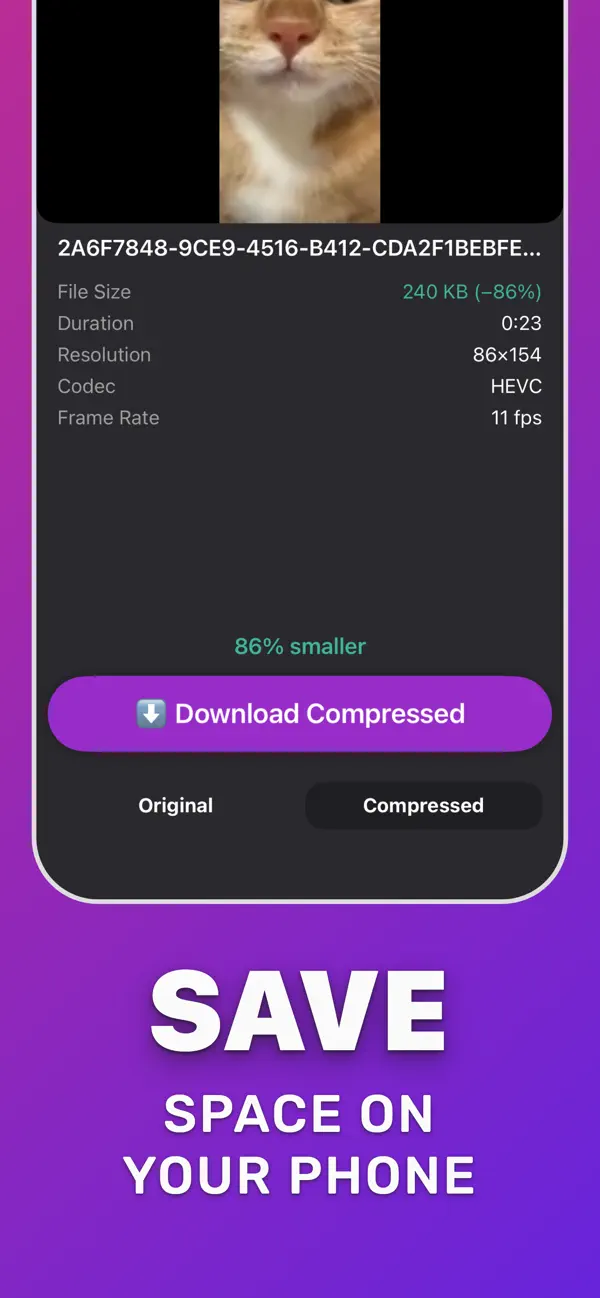
Tap Download Compressed to save it to Photos.
-
4
Delete the original
Check the copy, delete the original in Photos and empty Recently Deleted.

Do it in Compress Video
Free on the App Store. Pick the clip, tap Compress, save the smaller copy.
Questions people also ask
Will I lose quality if I compress my memories?
Keeping 1080p in HEVC looks the same on a phone and most laptops. Keep 4K originals only for clips you plan to edit or show on a TV.
Compress Video saves a new, smaller copy of your video. The original stays untouched until you delete it. Upload limits of third-party services change; check the service if a file is close to its limit.