Compress video
How to compress a video on iPhone
Quick answer
iPhone has no built-in “compress” button for an existing video. Open it in Compress Video, optionally trim it, drag the resolution slider down in Compress settings, tap Compress and then Download Compressed. You get a smaller HEVC copy; the original stays untouched.
Phone videos are huge: a minute of 4K is easily more than 150 MB. That breaks email, chat apps and uploads, and fills storage fast.
Photos can trim a clip but cannot re-encode it to a smaller size. Below are the built-in options, what they really do, and the four-tap way to compress any video on iPhone.
What iPhone can do without an app
None of the built-in options compress a video you already recorded. They either change future recordings or hand the job to a service.
- Settings → Camera → Record Video: lowers the size of new recordings only.
- Settings → Camera → Formats → High Efficiency: records future videos in HEVC instead of H.264.
- Photos → Edit: trims the clip, but the remaining part keeps its original bitrate.
- iMovie: exporting at a lower resolution works, but it means building a project for one clip.
- Online compressors: they require uploading a private video to someone else's server.
Why on-device compression matters
Compress Video encodes the clip on your iPhone. The video is not uploaded to a server to compress it, there is no account, and nothing leaves the phone until you share it yourself.
How the resolution slider works
Compress Video scales resolution with a slider instead of fixed presets. It shrinks width and height proportionally, so the aspect ratio never changes.
Pixel count drops with the square of the slider: 50% keeps a quarter of the pixels. From a 4K clip, 50% is about 1080p and about a third is about 720p. From a 1080p clip, about two thirds is about 720p.
| Source | Slider | Result (landscape) |
|---|---|---|
| 4K (3840×2160) | 50% | ≈ 1920×1080 |
| 4K (3840×2160) | ≈ 33% | ≈ 1280×720 |
| 1080p (1920×1080) | ≈ 67% | ≈ 1280×720 |
| 1080p (1920×1080) | 50% | 960×540 |
Which settings make the biggest difference
Resolution has the biggest effect: going from 4K to 1080p cuts the pixel count by four. Frame rate comes next: 60 fps to 30 fps roughly halves the frames to store. Audio is small compared with video, but muting it helps when you only need the picture.
| Change | Effect on size | Good for |
|---|---|---|
| 4K → 1080p | Large drop | Sharing on phones and chats |
| 1080p → 720p | Large drop | Email and quick previews |
| 60 fps → 30 fps | Noticeable drop | Talking, screen recordings |
| H.264 → HEVC | Often around half | Every clip, same resolution |
| Mute audio | Small drop | Silent clips, GIF-like loops |
Compress a video on iPhone with Compress Video
Free download, works offline, about a minute for a typical clip.
-
1
Open the video in Compress Video
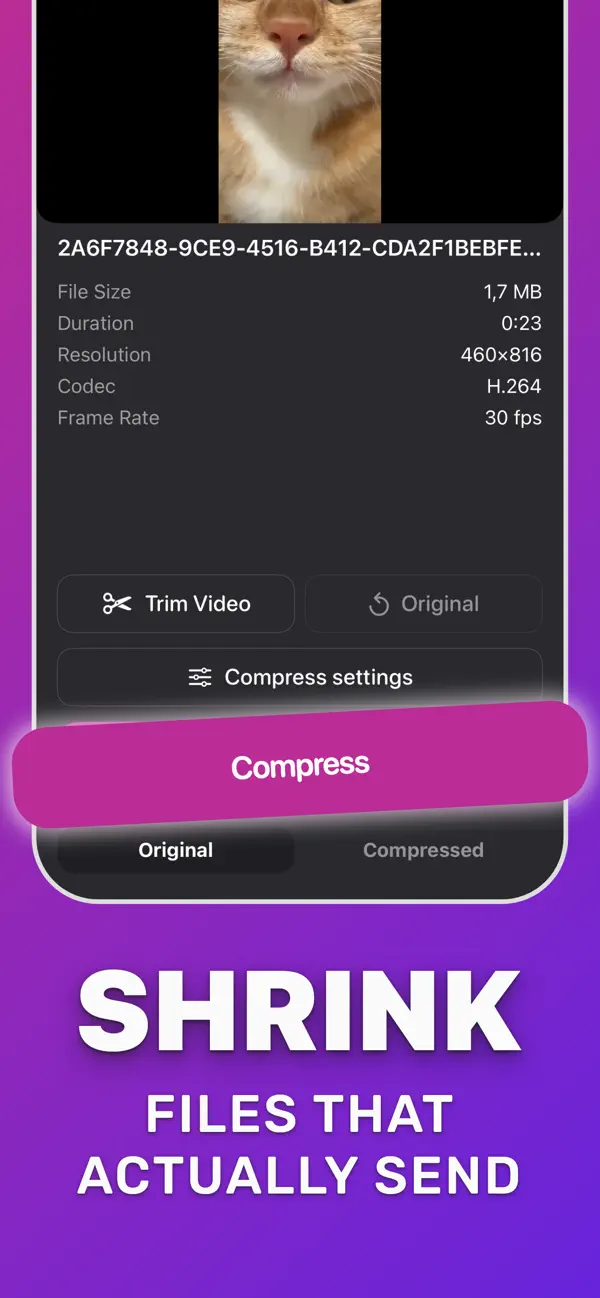
Open Compress Video and pick the clip from Photos or Files, or tap Share on the video in Photos and choose Compress Video.
-
2
Trim what you don't need
Tap Trim Video, drag the handles to keep only the part you need, and tap Save. Shorter clips are smaller clips.
-
3
Choose how small
Open Compress settings. Drag the resolution slider down, lower the frame rate if needed, and set audio to compress, keep or mute.
-
4
Compress and check the size
Tap Compress. The app shows the new size and how much smaller it is. Flip Original and Compressed to compare.
-
5
Save or share
Tap Download Compressed to save the smaller copy to Photos, or share it straight to Mail, WhatsApp, Discord or any app.

Do it in Compress Video
Free on the App Store. Pick the clip, tap Compress, save the smaller copy.
Tips for the smallest file
- Trim first: every second you remove is saved at 100%.
- For chat apps, about half the original resolution is usually enough on a phone screen (4K at 50% ≈ 1080p).
- Keep the original until you have checked the compressed copy.
Questions people also ask
Is there a way to compress a video on iPhone for free?
Yes. Compress Video is a free download with a daily number of compressions included. iOS itself can only lower the quality of future recordings, not existing ones.
Can I use an iPhone Shortcut to compress a video?
Shortcuts can encode media, but you have to build and tune the shortcut yourself and you don't see the before and after size. A dedicated app gives you resolution, frame rate and audio controls plus a size comparison.
Does compressing replace the original video?
No. Compress Video saves a new, smaller copy. The original stays in Photos until you delete it.
Compress Video saves a new, smaller copy of your video. The original stays untouched until you delete it. Upload limits of third-party services change; check the service if a file is close to its limit.