HEVC
How to convert a video to HEVC on iPhone
Quick answer
HEVC (H.265) stores the same picture as H.264 in fewer bits. Compress Video always exports HEVC: open the H.264 clip, keep the resolution if you want, tap Compress and then Download Compressed. Many H.264 clips come out around half the size.
New iPhone recordings are already HEVC if Settings → Camera → Formats is set to High Efficiency. Downloads, screen recordings from other apps, older videos and anything shot in “Most Compatible” are often H.264.
H.264 vs HEVC
HEVC is why Compress Video, a video compressor for iPhone, can shrink an H.264 clip without lowering its resolution. The codec does most of the work; the picture stays the same size on screen.
| H.264 (AVC) | HEVC (H.265) | |
|---|---|---|
| File size at same quality | Larger | Often around half |
| Playback | Everywhere | iPhone, Mac, modern Android and Windows with support |
| iPhone setting | Most Compatible | High Efficiency |
Still too big after HEVC?
Changing the codec is the first, free step. If the file still won't send, lower the resolution or frame rate in Compress settings, or trim the parts you don't need.
When not to convert
If the video is for a very old device or a workflow that only accepts H.264, keep the original or lower its resolution instead.
Convert H.264 to HEVC
One pass, no quality settings to guess.
-
1
Open the clip
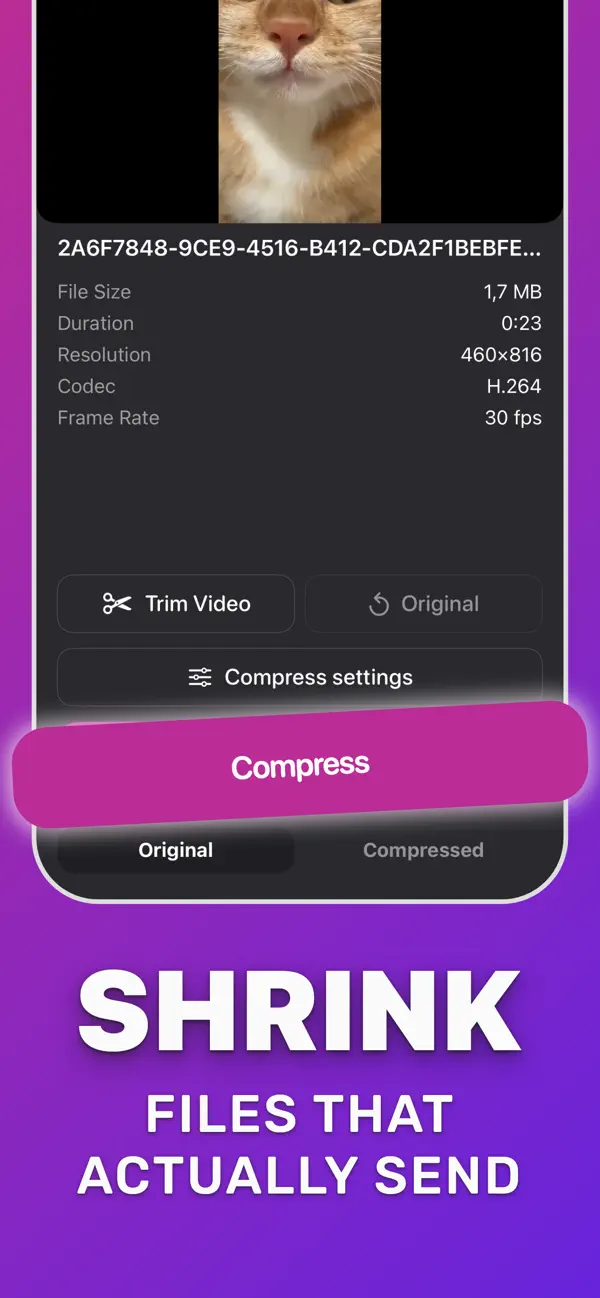
Pick the video in Compress Video and check that the codec reads H.264.
-
2
Keep the resolution
In Compress settings leave the resolution slider at 100% and keep the frame rate if you only want the codec change.
-
3
Compress
Tap Compress. The result is encoded in HEVC.
-
4
Save
Compare sizes and tap Download Compressed.

Convert to HEVC in Compress Video
Free video compressor for iPhone. Open the H.264 clip, tap Compress, save the HEVC copy.
Questions people also ask
Is H.265 the same as HEVC?
Yes. HEVC stands for High Efficiency Video Coding, also called H.265.
Compress Video saves a new, smaller copy of your video. The original stays untouched until you delete it. Upload limits of third-party services change; check the service if a file is close to its limit.