Video size
How to check video size on iPhone
Quick answer
In Photos, open the video and tap the Information button (ⓘ) at the bottom: the file size appears under the name of the device that recorded it. In Files, switch to list view to see the size next to the file name. If the number is above the limit of the place you are sending it to, trim or compress the clip.
Knowing the size first saves a failed send. Email, texts and chat apps each have their own limit, and iPhone recordings pass them quickly, especially in 4K or at 60 fps.
In the Photos app
- Open Photos and tap the video.
- Tap the Information button (ⓘ) at the bottom of the screen.
- Read the file size under the name of the device that recorded the video, next to the other technical details.
Photos shows one video at a time. It cannot sort your library by size.
In the Files app
For videos saved outside your photo library (downloads, AirDrop, cloud folders), open Files and find the video. The size appears next to the file name in list view, or under the thumbnail in icon view. Touch and hold the file and choose Get Info for the exact number.
Files can also sort a folder by size, which is the quickest way to spot the biggest clips.
Is it too big? Compare with the limit
| Where you send it | Limit |
|---|---|
| Gmail attachment | 25 MB |
| Outlook.com attachment | 20 MB |
| Discord (free account) | 20 MB |
| Apple Mail with Mail Drop | Up to 5 GB, as a link that expires after 30 days |
If the video is bigger than the limit, trim the parts you don't need and compress it, then check the new size again.
Why iPhone videos are so big
File size grows with resolution, frame rate and length. A minute of 4K at 60 fps takes several times the space of the same minute at 1080p and 30 fps. Settings → Camera → Record Video shows roughly how much space one minute takes at each setting on your iPhone.
Check the size and make it smaller
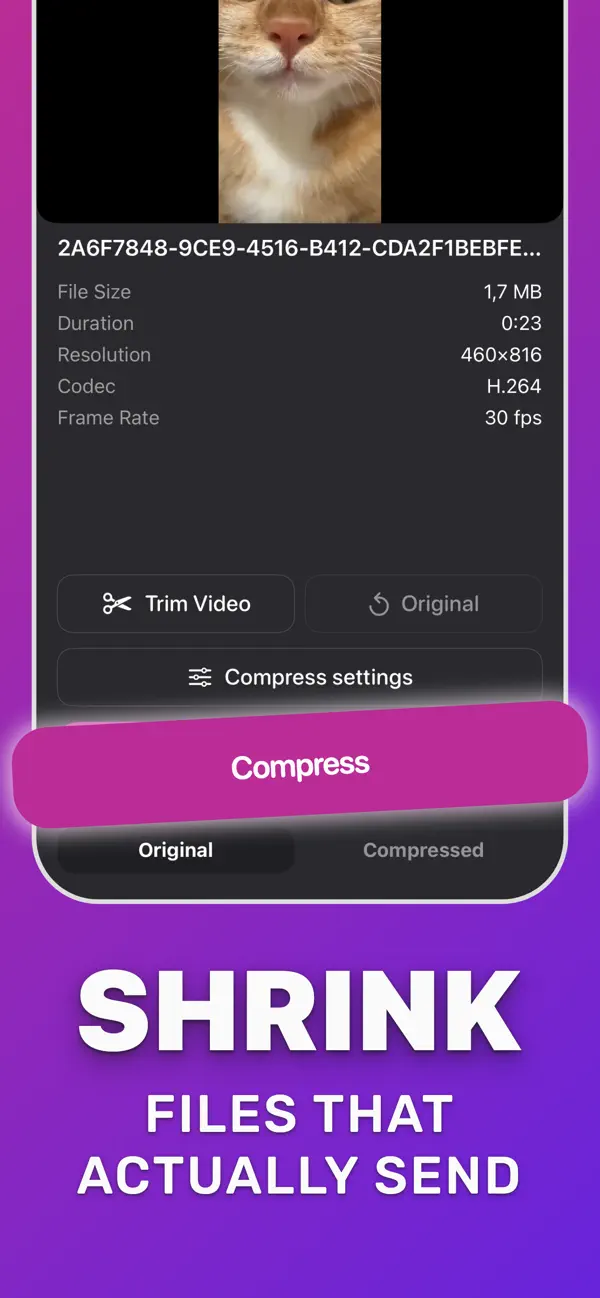
Compress Video shows both numbers, so you know the file fits before you send it.
-
1
Open the clip
Pick the video in Compress Video. The file details show its original size.
-
2
Trim if you can
Tap Trim Video and keep only the part you need.
-
3
Compress
Open Compress settings, lower the resolution or frame rate if needed, and tap Compress.
-
4
Compare and save
Check that the Compressed size is under your limit, then tap Download Compressed or share it.

See the size, then shrink it
Free video compressor for iPhone. Compare Original vs Compressed size before you save.
Questions people also ask
Can I sort videos by size in the iPhone Photos app?
No. Photos shows the size of one video at a time. To compare many clips, save them to a folder in Files and sort the folder by size.
How big is a one-minute iPhone video?
It depends on resolution and frame rate. 4K at 60 fps is far larger than 1080p at 30 fps. Settings → Camera → Record Video shows the approximate size per minute for each option on your iPhone.
How do I make a video smaller once I know its size?
Trim the parts you don't need, then compress it: Compress Video re-encodes the clip to HEVC and lets you lower resolution and frame rate, showing the new size before you save.
Compress Video saves a new, smaller copy of your video. The original stays untouched until you delete it. Upload limits of third-party services change; check the service if a file is close to its limit.